
How to Fix “The Package Could Not Be Installed. No Valid Plugins Were Found” in WordPress
in How To’s, Plugins, WordPress, WordPress Guides on August 27, 2026The “The package could not be installed. No valid plugins were found” error usually means WordPress cannot identify a valid plugin inside the ZIP file you uploaded. In most cases, the wrong ZIP, an extra outer package, a theme archive, or an incomplete download is the cause.
Beginner visual action plan
The steps below turn the main advice into a simple process you can follow. Complete one step, check the expected result, and only then continue.
Step 1: Confirm the package type
Read the filename and product documentation. Confirm the package is a WordPress plugin, not a theme or complete bundle.

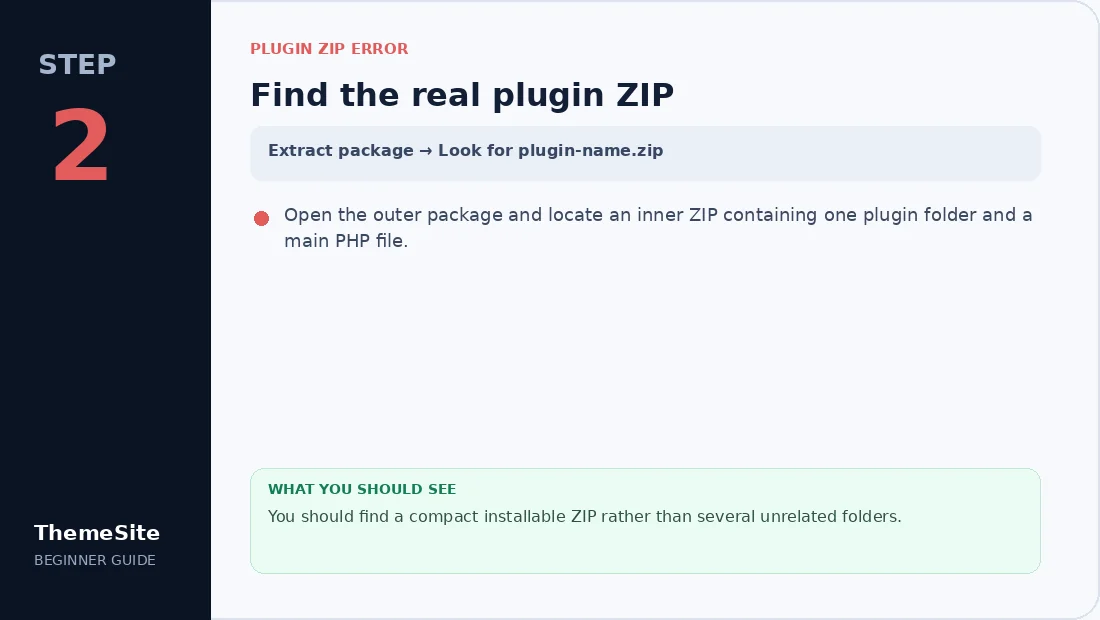
Step 2: Find the real plugin ZIP
Open the outer package and locate an inner ZIP containing one plugin folder and a main PHP file.
Step 3: Upload the correct ZIP
Select the verified inner ZIP, click Install Now and wait for WordPress to finish.

Step 4: Use SFTP only as a fallback
Extract the plugin folder and upload it when dashboard installation still rejects a valid package.

Why WordPress rejects the plugin ZIP
WordPress plugins require a main PHP file with a valid plugin header. The official Plugin Handbook explains that the header must at least include a plugin name. When WordPress extracts an archive and cannot find a valid plugin file, installation stops.
You uploaded the complete download package
Commercial downloads sometimes include documentation, licensing notes, child packages, screenshots and a second ZIP containing the actual plugin. Uploading the outer bundle can trigger the error.
You uploaded a theme through the plugin installer
Plugins must be installed under Plugins. Themes belong under Appearance → Themes. A valid theme package will still fail when WordPress is expecting a plugin.
The archive has the wrong folder structure
A normal plugin package usually looks similar to this:
plugin-name.zip
└── plugin-name/
    ├── plugin-name.php
    ├── includes/
    └── assets/
If several unrelated folders sit above the plugin folder, locate the correct inner ZIP or rebuild the package with the plugin folder at the top level.
The download is incomplete or corrupted
A dropped connection, interrupted browser download or damaged archive can remove files WordPress needs. Download a fresh copy before changing your website configuration.
How to fix “No valid plugins were found”
1. Confirm that the file is a plugin
Check the product name and documentation. If the package is a WordPress theme, install it from the Themes screen. If it is a plugin, continue with the next checks.
2. Inspect the ZIP without editing the plugin
Extract the package on your computer. Look for a folder containing a main PHP file. Open only the beginning of that file in a text editor and confirm it contains a Plugin Name: header. Do not modify the code.
3. Find the installable inner ZIP
If the outer archive contains another ZIP with the product name, that inner archive is often the installable package. Upload it from Plugins → Add New → Upload Plugin. WordPress documents this dashboard process in its plugin management guide.
4. Download a clean copy
Delete the failed local archive and download it again from your trusted source. Avoid renaming unrelated files to .zip; the package must be a real ZIP archive.
5. Use SFTP or your hosting file manager
If the package structure is valid but dashboard installation still fails, extract the plugin folder and upload it to wp-content/plugins/. Then open the WordPress Plugins screen and activate it. WordPress recommends manual SFTP installation only when necessary and for users comfortable transferring server files.
6. Check permissions and available storage
Ask your host to confirm that WordPress can write to wp-content/plugins and that the account has enough disk space. Do not use broad permissions such as 777 as a shortcut.
How to prevent the error next time
- Keep the original ZIP filename so you can identify the package.
- Read the included installation notes before uploading a marketplace bundle.
- Use the Plugins screen for plugins and the Themes screen for themes.
- Keep a backup before installing or replacing important site software.
- Browse our WordPress Plugins category for clearly presented product files and version information.
If you still cannot identify the correct package, contact ThemeSite with the product name and the exact WordPress error message.
Frequently asked questions
Why does WordPress say no valid plugins were found?
WordPress usually cannot locate a valid plugin main PHP file and plugin header inside the uploaded ZIP. This often happens when the wrong archive, a theme ZIP, a documentation bundle, or a damaged download is uploaded.
Should I unzip a plugin before uploading it to WordPress?
Normally you upload the installable plugin ZIP through Plugins → Add New → Upload Plugin. Unzip it locally only when you need to inspect the package or identify a nested installable ZIP.
Can I install the plugin with SFTP instead?
Yes. Extract the correct plugin folder, upload it to wp-content/plugins with SFTP or a hosting file manager, and then activate it from the WordPress Plugins screen.
Will re-downloading the plugin fix the error?
It can fix the problem when the first download was incomplete or corrupted. Download the package again from the source you trust and compare its file size before retrying.