
How to Fix “The Uploaded File Exceeds the upload_max_filesize Directive” in WordPress
in How To’s, Website Building, WordPress, WordPress Guides on August 27, 2026The “The uploaded file exceeds the upload_max_filesize directive in php.ini” error means PHP is blocking a WordPress upload because the file is larger than the server’s configured limit. Fix it by increasing the PHP upload limit and ensuring the total request limit is at least as large.
upload_max_filesize, set post_max_size to the same or a larger value, restart PHP if your server requires it, and then check the maximum upload size shown in WordPress.Beginner visual action plan
The steps below turn the main advice into a simple process you can follow. Complete one step, check the expected result, and only then continue.
Step 1: Check the current limit
Read the maximum upload size shown below the uploader and compare it with your ZIP file.

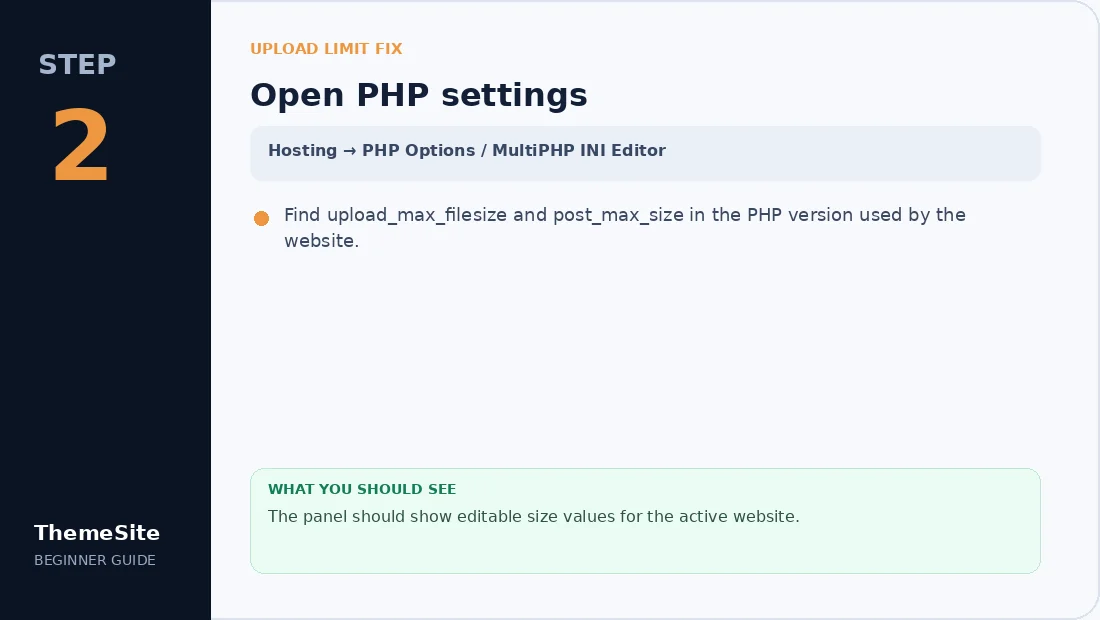
Step 2: Open PHP settings
Find upload_max_filesize and post_max_size in the PHP version used by the website.
Step 3: Increase matching limits
Set post_max_size equal to or larger than upload_max_filesize, save and restart PHP if required.

Step 4: Verify in WordPress
Reload WordPress and check the displayed maximum upload size before trying the ZIP again.

What the upload_max_filesize error means
WordPress uses PHP to process dashboard uploads. The official WordPress Advanced Administration Handbook explains that upload_max_filesize limits an individual file, while post_max_size limits the entire request. PHP will not process requests larger than post_max_size.
That means increasing only one value may not solve the problem. Hosting limits, PHP-FPM configuration and web-server limits can also apply.
Check your current WordPress upload limit
- Open Media → Add New in WordPress.
- Look for the maximum upload file size displayed below the uploader.
- Alternatively, open Tools → Site Health → Info → Media Handling.
Compare that limit with the size of the theme, plugin or media file you need to upload.
Method 1: Change the limit in your hosting panel
This is usually the safest approach on shared hosting:
- Open your hosting control panel.
- Find PHP Options, MultiPHP INI Editor or a similar tool.
- Increase
upload_max_filesize. - Set
post_max_sizeto an equal or larger value. - Save the configuration and recheck WordPress.
Method 2: Edit php.ini or .user.ini
If your server allows per-site PHP configuration, add or update values like these:
upload_max_filesize = 128M
post_max_size = 160M
memory_limit = 256M
max_execution_time = 300
max_input_time = 300
The official PHP manual documents these core directives. The exact configuration file and whether a service restart is required depend on the server.
Method 3: Use .htaccess on compatible Apache hosting
Some Apache servers allow PHP values in .htaccess:
php_value upload_max_filesize 128M
php_value post_max_size 160M
php_value memory_limit 256M
php_value max_execution_time 300
If this causes a 500 error, remove the lines immediately. Your server may use PHP-FPM or may not permit PHP values in .htaccess.
Method 4: Adjust Nginx or reverse-proxy limits
On an Nginx server, PHP limits can be correct while the web server still rejects the request. An administrator may need to adjust client_max_body_size and reload Nginx. Managed-hosting customers should ask support rather than changing server files blindly.
Method 5: Ask your hosting provider
Shared-hosting providers often enforce server-level limits that site owners cannot raise. WordPress’s documentation specifically recommends contacting the host when those limits cannot be changed in your account.
If the displayed limit does not change
- Confirm you edited the PHP configuration used by the website, not the command-line PHP configuration.
- Restart PHP-FPM or the relevant service if your environment requires it.
- Check that
post_max_sizeis not smaller thanupload_max_filesize. - Check for a host or web-server request-size limit.
- Clear hosting caches and reload the WordPress admin screen.
Alternative: install the product with SFTP
If you cannot increase the dashboard limit, extract the product and upload the correct plugin folder to wp-content/plugins/ or theme folder to wp-content/themes/ using SFTP. Activate it through WordPress afterward.
Explore ThemeSite’s WordPress products or contact us if you need help identifying the correct installable package.
Frequently asked questions
What causes the upload_max_filesize error in WordPress?
The uploaded file is larger than the maximum file size PHP allows for one upload. The effective WordPress limit also depends on post_max_size and sometimes web-server or hosting limits.
Should post_max_size be larger than upload_max_filesize?
Yes. WordPress developer documentation says post_max_size must be greater than or equal to upload_max_filesize because PHP will not process a request larger than post_max_size.
Can WordPress itself increase the server upload limit?
WordPress displays and uses the server limit, but many hosting environments require the value to be changed in the hosting panel, php.ini, .user.ini or by the hosting provider.
What values should I use for large plugin or theme uploads?
Use the smallest sensible limit that safely exceeds your package size. For example, upload_max_filesize 128M and post_max_size 160M may be suitable, but the correct values depend on your host and workload.