
How to Find and Fix WordPress Plugin Conflicts Without Breaking Your Site
in How To’s, Plugins, Website Building, WordPress on August 28, 2026A plugin conflict happens when two pieces of WordPress software try to change the same feature in incompatible ways. The result may be a broken layout, missing button, failed form, checkout error or a completely blank page. This guide helps beginners isolate the cause without experimenting carelessly on the live site.
What you need before starting
- WordPress administrator access
- A complete backup
- A staging copy when the site is live
- The exact page and steps that trigger the problem
- Hosting File Manager or SFTP for emergency recovery
Step 1: Write down the problem
Record the affected page, error message, time and action that causes the problem. Take a screenshot.

Step 2: Create a full backup
Back up files and database. Confirm the backup says Completed or Successful.

Step 3: Copy the site to staging
Create a private copy and reproduce the same problem there.

Step 4: Clear caches first
Clear page, object, CDN and browser caches before deactivating software.

Step 5: Deactivate non-essential plugins
On staging, deactivate plugins in small groups. Reload the broken feature after every group.

Step 6: Reactivate plugins one at a time
Reactivate one plugin, test, then continue until the problem returns.

Step 7: Check errors and the browser console
Look for a clear PHP, JavaScript or REST error connected to the feature. Copy the message without editing it.

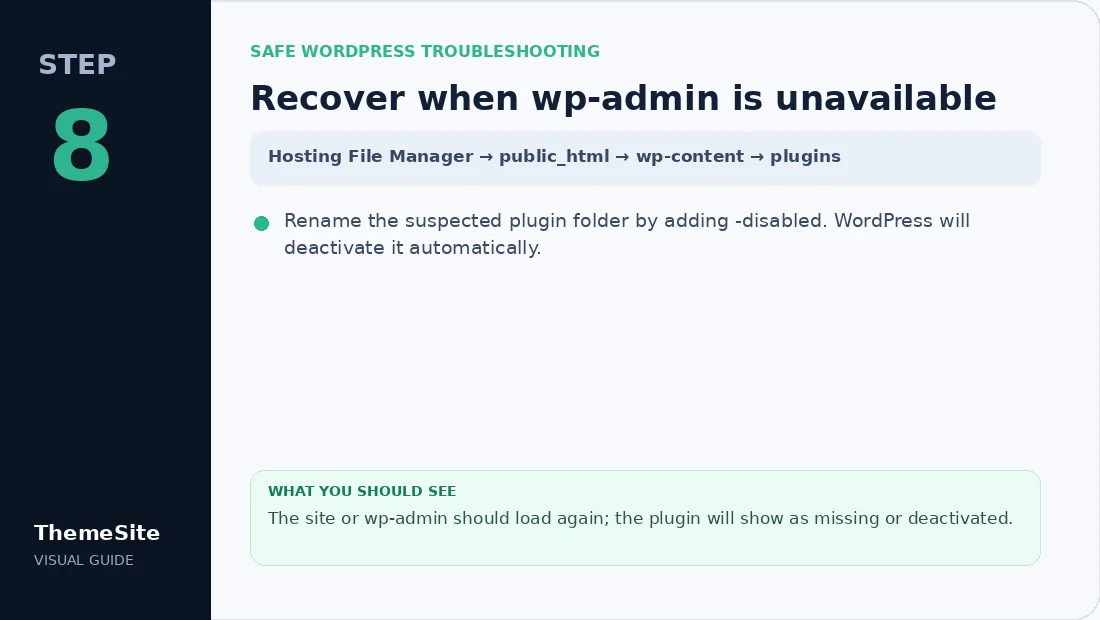
Step 8: Recover when wp-admin is unavailable
Rename the suspected plugin folder by adding -disabled. WordPress will deactivate it automatically.
Step 9: Choose the safest resolution
Update the conflicting software, adjust a documented setting, contact the developer or replace the plugin.

Common signs of a plugin conflict
- A form stops submitting after an update.
- The editor keeps loading forever.
- A button works only when another plugin is disabled.
- Checkout totals or account pages fail.
- The browser console shows JavaScript errors.
- WordPress displays a critical-error message.
Do not use the live site as your experiment
A production site contains real visitors, orders and customer sessions. Test in staging and browse WordPress Plugins by purpose so you can replace overlapping tools with a focused alternative.
Final verification checklist
- Required plugins are active.
- The original problem no longer occurs.
- Forms and emails work.
- Checkout and accounts work.
- Desktop and mobile layouts work.
- No new PHP or JavaScript errors appear.
- The backup is retained until the fix is proven.
Frequently asked questions
Can I deactivate every plugin at once?
Do this only on staging or during controlled maintenance because important live features may stop.
Does a conflict mean one plugin is badly coded?
Not always. Two valid plugins can still make incompatible assumptions about the same hook, script or data.
What if the problem remains with all plugins disabled?
Test the active theme, WordPress core, server configuration and custom code next.
How do I disable a plugin without wp-admin?
Rename its folder under wp-content/plugins using File Manager or SFTP.