How to Update a WordPress Plugin Manually Without Losing Settings
in How To’s, Plugins, WordPress, WordPress Guides on August 27, 2026You can update a WordPress plugin manually without losing its settings when you replace only the plugin files and protect the database. The safest process is to back up the site, verify the new package, replace the existing plugin carefully and test the important features immediately.
Beginner visual action plan
The steps below turn the main advice into a simple process you can follow. Complete one step, check the expected result, and only then continue.
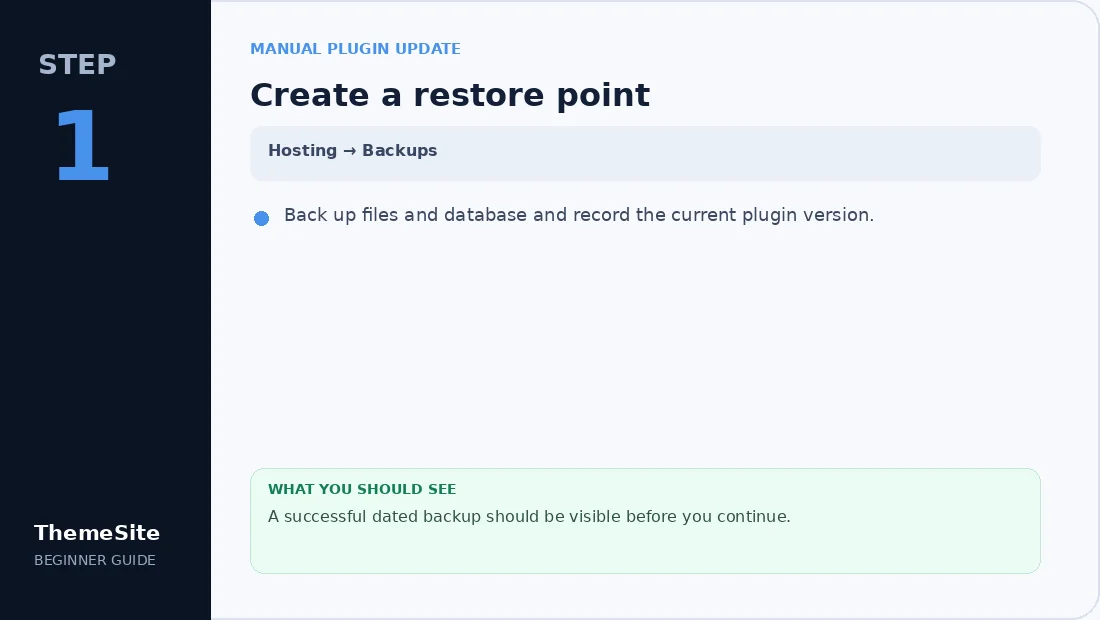
Step 1: Create a restore point
Back up files and database and record the current plugin version.
Step 2: Check the new package
Confirm the ZIP is the correct plugin and read the changelog for compatibility or database notes.

Step 3: Replace through WordPress
Upload the new ZIP and choose Replace current with uploaded after comparing versions.

Step 4: Test and keep rollback
Confirm the new version, clear caches and test forms, checkout and account functions.

Why plugin settings usually remain after an update
Most well-built plugins store configuration in the WordPress database, while the plugin folder contains the PHP, JavaScript, CSS and other files that run the feature. Replacing those files usually leaves database settings intact. However, plugins differ, and direct edits inside a plugin folder will normally be overwritten.
WordPress’s official plugin management documentation recommends keeping plugins updated and making a current backup before updates because problems can occur.
Before you update the plugin manually
1. Create a complete backup
Back up both the WordPress files and database. A files-only backup cannot restore plugin settings stored in the database. If you manage several sites, consider a tool from our Backup & Migration category.
2. Check the current and new versions
Open Plugins → Installed Plugins and record the current version. Compare it with the version supplied in the update package. Read the developer’s changelog for database migrations, minimum PHP requirements and breaking changes.
3. Check the ZIP package
Confirm that the archive contains the plugin folder and main plugin file—not documentation, a theme or a complete marketplace bundle. Keep the original old ZIP if you have it; it can speed up rollback.
4. Remove direct code edits
If someone edited files inside the plugin directory, copy those changes to a private comparison file before updating. Reimplement necessary custom behavior through documented hooks, a snippets manager or a small site-specific plugin.
Method 1: Update with WordPress’s ZIP replacement screen
- Go to Plugins → Add New → Upload Plugin.
- Select the new plugin ZIP and click Install Now.
- When WordPress detects the existing plugin, compare the current and uploaded versions.
- Choose Replace current with uploaded only after confirming the package.
- Return to Installed Plugins and confirm the plugin is active.
This method is convenient because WordPress handles the folder replacement. Do not close the browser or interrupt the installation while files are being replaced.
Method 2: Update manually with SFTP or File Manager
- Extract the new plugin ZIP on your computer.
- Connect with SFTP or open your host’s file manager.
- Navigate to
wp-content/plugins/. - Rename the current folder to something such as
plugin-name-old. - Upload the new plugin folder using the original folder name.
- Check the site and WordPress admin before deleting the temporary old folder.
WordPress documents SFTP installation as an advanced fallback. Renaming rather than immediately deleting the old folder creates a quick file-level rollback, but your database backup remains the most important protection.
Post-update checklist
- Confirm the plugin version under Installed Plugins.
- Open the plugin settings and confirm important values remain.
- Test forms, checkout, scheduled actions or other critical workflows.
- Clear WordPress, server, CDN and browser caches.
- Check the browser console and WordPress Site Health for errors.
- Keep the backup until the site has operated normally for a reasonable period.
What to do if the update breaks the site
Restore the backup or replace the new plugin folder with the previous version. If WordPress admin is inaccessible, rename the plugin folder through SFTP to deactivate it. Review the error log and compatibility requirements before retrying.
Browse WordPress Plugins on ThemeSite or contact us when you need help identifying the correct product package.
Frequently asked questions
Will manually updating a plugin delete its settings?
Most plugins store settings in the WordPress database, so replacing plugin files normally preserves them. Behaviour varies by plugin, which is why a complete backup is essential.
Should I deactivate a plugin before replacing its files?
Some plugins can be replaced while active, but deactivation is safer when the developer recommends it or when the plugin performs complex background tasks.
Can I upload the new ZIP over the old plugin?
Modern WordPress versions can offer a replace-current option when you upload a ZIP for an installed plugin. Review both versions carefully before confirming the replacement.
What customizations can be lost during a manual update?
Any direct edits made inside the plugin folder can be overwritten. Use hooks, snippets, a small custom plugin or documented extension methods instead of modifying vendor plugin files.